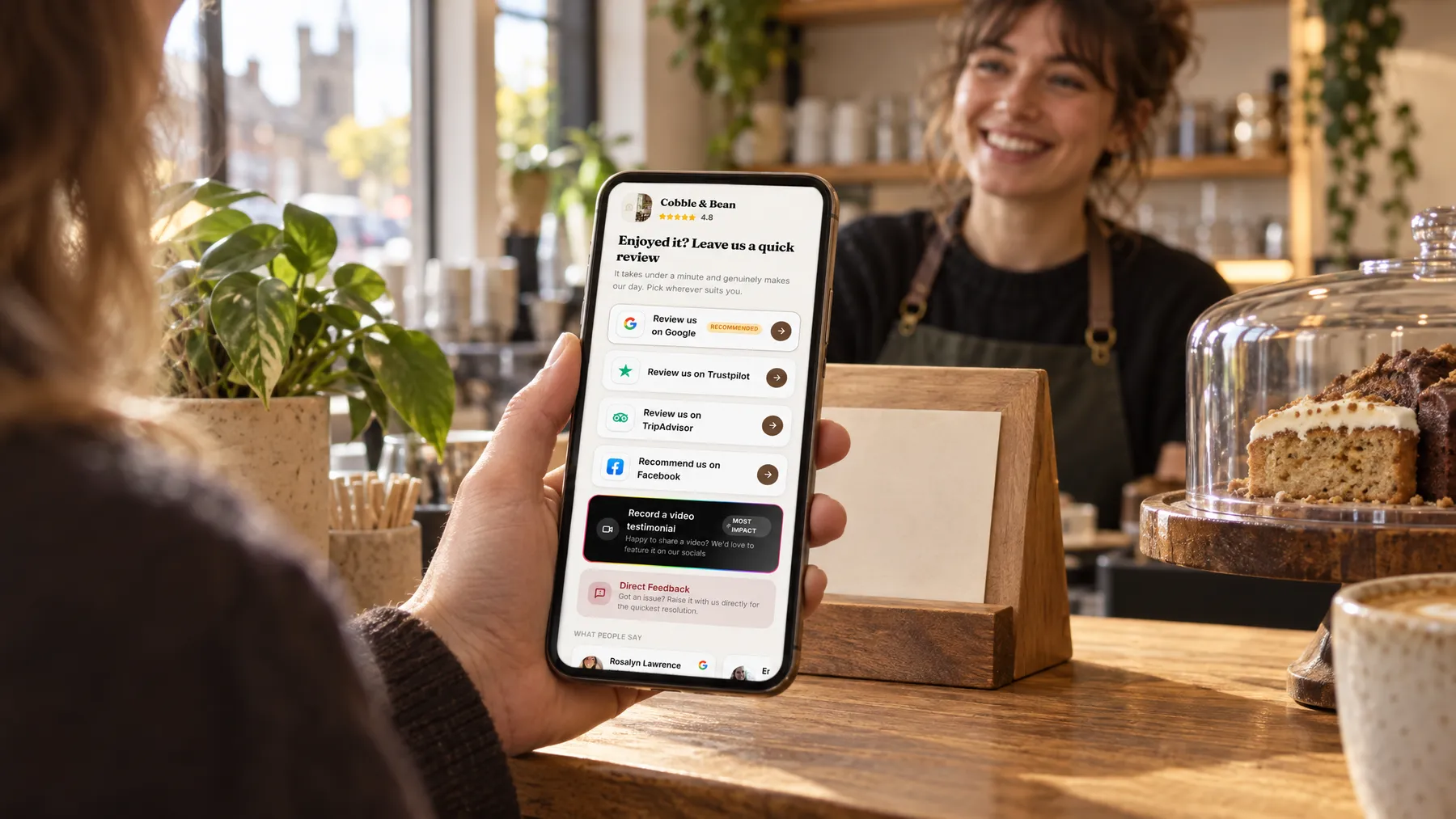
Getting more Google reviews comes down to three things: asking every customer, at the right moment, in a way that takes them seconds. This guide covers all three, with templates you can copy, and the rules from Google and UK law that decide what you can and can’t do.
Why recency and volume matter
More reviews help in two places: in Google’s ranking, and in the customer’s head.
Google is fairly open about the first. Its guide to improving your local ranking says local results depend on relevance, distance and prominence, which it describes as “how well-known a business is”, based partly on “how many reviews you have”. In its own words: “More reviews and positive ratings can help your business’s local ranking.”
Customers care about fresh reviews too. BrightLocal’s 2026 Local Consumer Review Survey, which polled 1,002 US adults, found that 74% of consumers only care about reviews written in the last three months, and 47% won’t use a business with fewer than 20 reviews. It’s an American panel, so treat the exact figures as a guide rather than a UK measurement. The direction is hard to argue with, though: a profile whose newest review is from last spring looks like a business that has gone quiet.
So the goal isn’t a one-off push. It’s a steady flow of honest reviews from ordinary customers, every week. And a few less glowing ones in the mix are no disaster. Google’s own help page says “a mix of positive and negative feedback often feels more trustworthy.”
When to ask: timing and the moment of delight
Ask while the experience is fresh and the customer is pleased with it, ideally on the day and certainly within a day or two. Leave it a fortnight and the memory has faded, along with the goodwill.
What that looks like depends on your trade:
| Business | A good moment to ask | How |
|---|---|---|
| Café or restaurant | As they pay, or that evening | A QR code on the table or by the till; a text that evening if they booked |
| Pub | At the end of a good night | A card behind the bar or a QR code on the table |
| Plumber, electrician or builder | When you hand over the finished job | Ask in person, then text the link the same day |
| Garage | When the customer collects the car | The link on the invoice and a text after collection |
| Dentist or vet | After the appointment | A text later that day |
| Florist | After delivery or collection | A card with the order, or an email after a wedding or event |
Then there’s the moment of delight: the customer who says “that’s brilliant, thank you”. It’s a natural opening to say “it would really help us if you put that in a Google review.”
But it can’t be the only time you ask. Google’s policy bans businesses from selectively soliciting positive reviews. The UK’s Competition and Markets Authority (CMA) takes the same line, counting “encouraging just those who are satisfied to leave reviews” as cherry-picking. So make asking a routine for every customer, and treat a compliment as a reminder, not a filter.
Make it effortless
Every extra step is a chance for someone to give up. The aim is one tap from your request to Google’s review box.
Get your direct review link
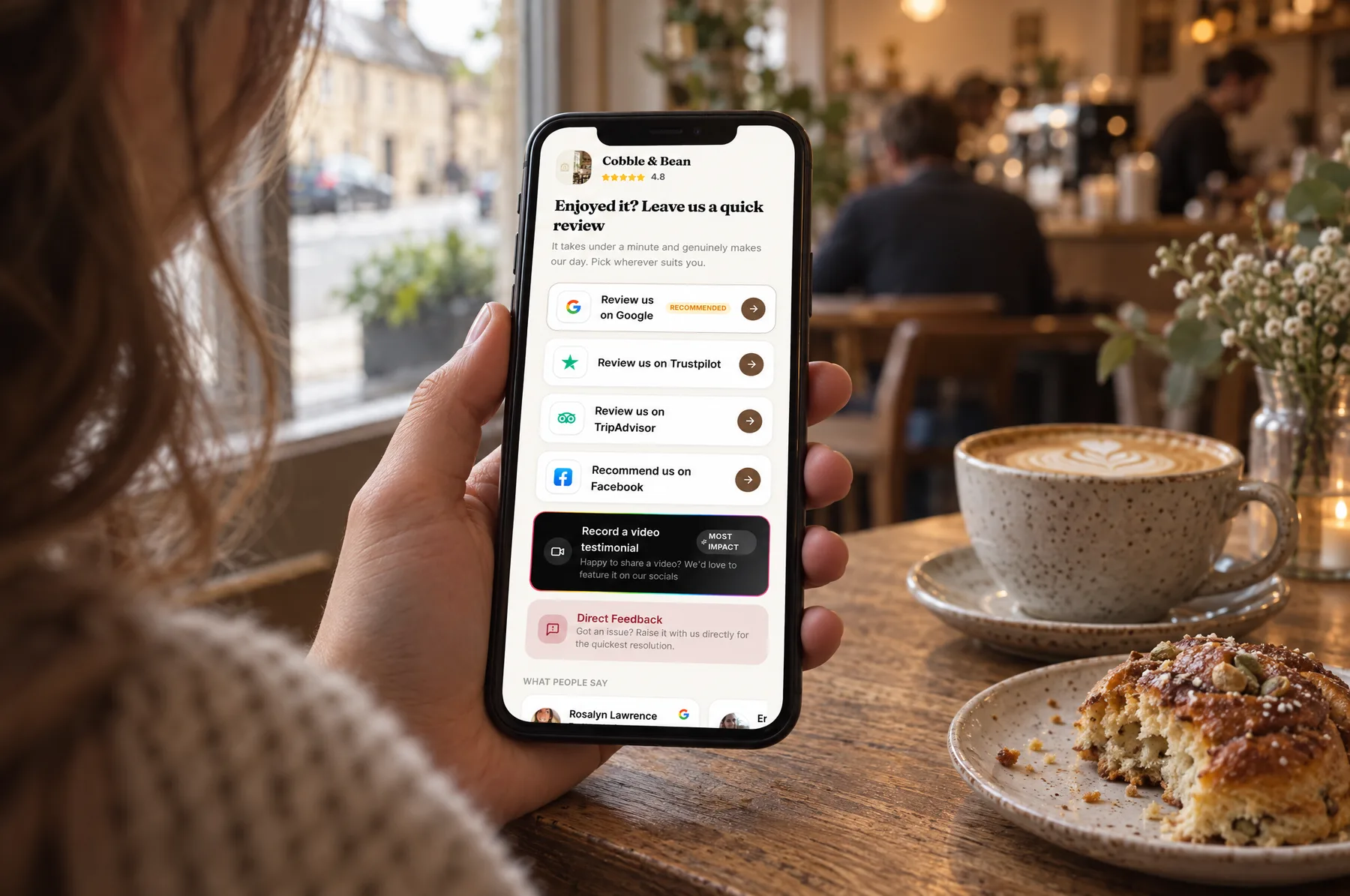
Every Business Profile has its own review link and QR code. Google’s help page explains where to find them: go to your Business Profile, select Read reviews, then Get more reviews, and copy the link. For now the QR code can only be generated in a browser on a computer, not on a phone. Right-click it to save the image.
Put it where customers already look
Google suggests adding the link to receipts, thank-you emails and the end of a chat, and printing the QR code for your premises. Other places that work well:
- a small stand or sticker by the till, at eye level
- the bottom of invoices, receipts and job sheets
- a card left with the paperwork after a job
- tap cards: small NFC cards or stickers that open your review link when a phone is held against them
- your email signature
Send a text after the visit or job
For most local businesses, a short text a few hours after the visit or job is the simplest way to ask, because it lands on the phone they’ll leave the review from. Keep it short, personal and signed by a real person. Only message customers who gave you their number for the booking or job, and stop if anyone asks you to.
Tell them it doesn’t need to be long
Plenty of people put off writing a review because they think it needs to be an essay. Tell them a sentence or two is plenty. In the BrightLocal survey, a review being “long and detailed” came bottom of the list of review factors consumers said they care about.
One more practical point: Google requires people to be signed in to a Google account to leave a review, though they can create one with a non-Gmail email address. If a customer says they can’t leave one, check that first.
Templates you can copy
Swap in your own details and keep the wording neutral: ask for an honest review, never a five-star one. The businesses in these examples are made up.
Follow up, gently
Lots of people mean to leave a review and simply forget. One polite reminder a few days later is reasonable; two is the most you should send. After that, let it go.
Two rules for follow-ups. First, stop once someone has left a review or asks you not to contact them. Second, keep asking even in a bad week. The CMA’s fake reviews guidance lists “arbitrarily stopping and starting review invitations” among the ways a business can interfere with genuine negative reviews. So don’t switch requests off after a difficult job and back on when things are going well.
Getting your team to ask
Your staff probably see more customers than you do, so they’ll be doing most of the asking. Make it easy for them:
- Give them one line to say, like the in-person script above, so nobody has to improvise.
- Make it part of the routine for every customer: when handing over the bill, the keys or the finished job.
- Give them something to hand over, such as a card with the QR code, or an offer to text the link.
- Share the reviews that come in, especially the ones that mention good service, so the team sees the point.
What you mustn’t do is set targets. Google’s policy says businesses should not ask staff to “solicit a certain number of reviews”, or to solicit reviews with specific content, “including content that identifies a staff member”. So no review targets for staff (a bonus per review is a target by another name), and no asking customers to mention someone by name.
Your team should never review the business themselves, either. Google treats current or former employment as a conflict of interest, and the CMA’s guidance gives a business asking a member of staff to write a review as an example of commissioning one.
What’s not allowed: Google’s rules and UK law
Two sets of rules apply. Google’s policies decide what stays on your profile. UK law decides what could get you into trouble with regulators.
Google’s rules
Google’s policy on Maps content bans fake engagement and rating manipulation. Under it, businesses may not:
- “Offer incentives – such as payment, discounts, free of cost goods and/or services – in exchange for posting any review or revision or removal of a negative review”
- “Discourage or prohibit negative reviews, or selectively solicit positive reviews from customers”
- “require or pressure users to leave ratings or write reviews while on the premises”, or “request that specific content be included”
Review gating, where you ask customers how it went and only send the happy ones on to Google, breaks the second rule. Google says incentivised and fake reviews “will be removed”.
UK law
The Digital Markets, Competition and Consumers Act 2024 added fake reviews to the list of practices that are banned outright. According to the CMA’s short guide for businesses, the changes came into force on 6 April 2025, and the CMA and the courts can now fine businesses up to 10% of their worldwide turnover for breaking consumer law. The CMA’s fake reviews guidance, published on 4 April 2025, says the ban covers:
- writing, or getting someone else to write, a review that isn’t based on a genuine experience
- incentivised reviews that hide the incentive
- publishing reviews in a misleading way, including cherry-picking the good ones
UK law is a little looser than Google on incentives. The CMA says an incentivised review can be lawful if the incentive is made clear, and that entry into a prize draw is unlikely to count as commissioning a review. Google’s policy bans incentives in exchange for reviews without those exceptions, so for your Google profile the safe answer is no: no discounts, no free drinks, no prize draws.
| Practice | OK? |
|---|---|
| Asking every customer for an honest review | Yes. The CMA says simply emailing customers to ask if they’d like to leave a review isn’t prohibited |
| A review link by text or email, a QR code, a tap card | Yes |
| One or two polite reminders | Yes |
| A discount, freebie or prize draw for a review | No, under Google’s policy |
| Asking only happy customers, or checking first and filtering | No, under Google’s policy and the CMA’s guidance |
| Asking for five stars or for particular words | No, under Google’s policy |
| Staff, friends or family reviewing you | No: a conflict of interest for Google, and risky under UK law |
| Review targets for staff | No, under Google’s policy |
| Buying reviews, or writing your own | No, and banned by the 2024 Act |
The short version
- Get your review link and QR code from your Business Profile.
- Ask every customer, within a day, in person and by text or email.
- Keep it short, personal and neutral: an honest review, not a five-star one.
- Send one reminder, two at most, and keep asking in quiet weeks too.
- Give your team a script, not a target.
- No incentives, no filtering, no fake, staff or family reviews.
- Reply to what comes in, including the bad ones. Here’s how to reply to a bad review.
If you’d rather this ran itself, LocalQuiver’s review management gives you one review page for your QR codes and our tap cards, and its automations send the request by text or email after each job, with up to two follow-ups that stop once the customer taps through. Every customer sees the same public review buttons.