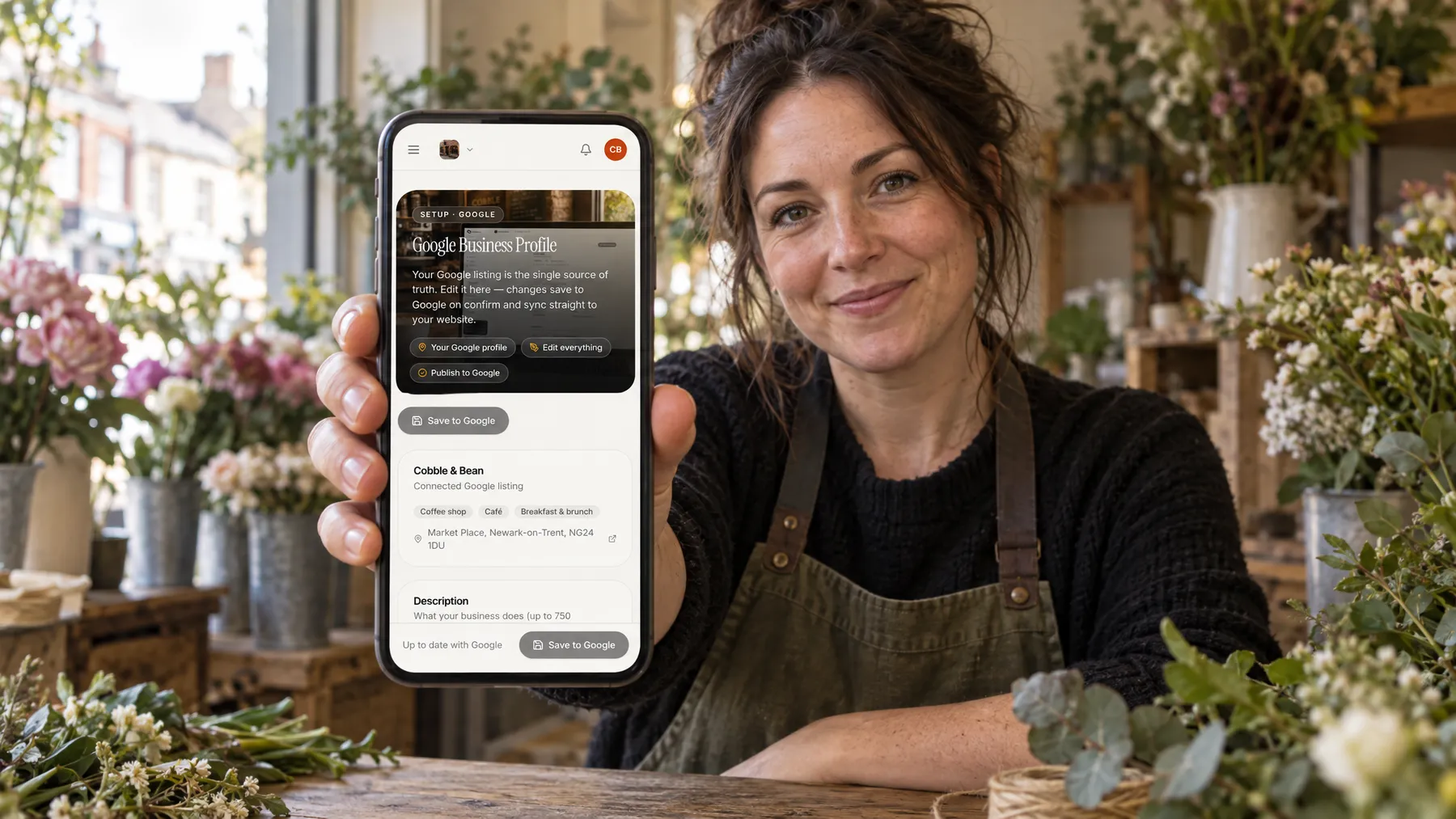
Your Google Business Profile is often the first thing a new customer sees, before your website and before they ever ring you. This checklist takes you through every part of it, using the rules from Google's own help pages, then gives you a routine to keep it accurate through the year.
Google changes this product often. Everything below was checked against Google's help pages in October 2026. If a screen on your profile looks different, trust the screen, and leave alone anything that isn't there.
Before you start
- Verify the profile. Google says that to show your business on Search, Maps and other Google services, you must add or claim your business, "then verify your Business Profile". Your photos and videos only show up "after you verify your Business Profile."
- Sign in with the right account. To edit, you need the Google Account linked to the profile. Make sure it's one the business controls, not a former employee's personal email.
- One business, one profile. Google's guidelines say "there should only be one profile per business". If you find a duplicate, sort it out rather than running two.
- Edits aren't immediate. Google says "we review your changes before we update them live on your profile." If you change your business name after verification, "you might need to verify your business again", and if you move address you "must verify your business again".
The basics: name, categories, location and contact
Work through these in order. The numbers carry on through the whole article, so you can tick them off as you go.
- Business name. Use your "real-world name, as used consistently on your shopfront, website, stationery and as known to customers." Google lists what your name must not include: marketing taglines, shop codes, opening hours, phone numbers or web addresses, service or product information, location information and fully capitalised words. Legal terms such as "Ltd" need "real-world proof (e.g. signage, business cards, invoices)" that you really use them. Google warns that unnecessary information in a name "could result in the suspension of your Business Profile."
- Primary category. Choose the most specific category for your core business. Google's test: it should complete the sentence "This business IS a", not "this business HAS a". If you're a florist who does a lot of weddings, you're still a florist first.
- Extra categories. You can select "up to nine more", but Google asks for "the fewest number of categories" that describe your core business, and says not to use categories "solely as keywords or to describe features of your business."
- Address. Use your real location. Google says "PO boxes or mailboxes located at remote locations aren't acceptable", a virtual office "isn't eligible for a Business Profile", and a co-working desk only counts if it has clear signage, receives customers and is staffed during opening hours. Businesses showing their address "should maintain permanent fixed signage of their business name at the address."
- Service area. If you go to your customers, set a service area and hide your address. Google's own example: "if you're a plumber and run your business from your residential address, clear the address from your Business Profile." The overall area "shouldn't extend farther than about two hours of driving time from where your business is based." If customers can also visit you, and the premises are staffed during your stated hours, you can show the address and a service area.
- Phone number. Use a local number "under the direct control of the business", not a call centre line where you can avoid it, never a premium-rate number, and never one that redirects to someone else. You can add "up to two more phone numbers", mobile or landline, but not fax.
- Website. Enter the full address, including "https://", and link to your own site, not to a page that redirects elsewhere. Some categories can also add links for "online orders, reservations or appointments", so add your booking or ordering link if Google offers the option for your category.
- Consistency. Your name, address and phone number should match exactly across your profile, your website, your Facebook page and any directories. Anyone can suggest an edit to a profile they don't own, so check from time to time that nothing has changed without you.
Hours, bank holidays and Christmas
- Regular hours. Give your "regular customer-facing hours of operation." If you're seasonal, set your season's hours as regular hours while you're open, and mark the business temporarily closed in the off-season. Google also says businesses that "operate only by appointment" shouldn't list hours.
- Special hours. Use these for bank holidays, events and short closures. Google lets you set special hours if you change your hours or close "for up to six days in a row", and suggests confirming your hours for official holidays "even if they're the same as your regular hours". If you'll be closed "for seven or more days in a row", mark the business as temporarily closed instead.
- More hours. If one part of the business keeps different times, such as takeaway or delivery, Google has a separate "More hours" setting, which should sit within your main hours.
What you do: description, services and attributes
- Description. Google says to include "what you offer", "what makes you special", "how long you've been in business" and "anything else that's helpful for customers to know". Keep it under 750 characters, with no links, no HTML and no focus on promotions, prices or sales. Here's an example for an illustrative florist, at around 500 characters:
Marigold & Moss is an independent florist in Harrogate, arranging seasonal, British-grown flowers since 2014. We make bouquets for collection or local delivery, wedding flowers from the first consultation to the last buttonhole, and sympathy tributes made with care. Everything is arranged by hand in our shop on Station Parade, using what's best that week rather than a fixed catalogue. We're happy to talk ideas through in person or on the phone, and we keep a small range of house plants and pots for gifts.
- Services or menu. Where your category has it, use Google's menu and services editor to list what you actually offer, kept accurate. Retail shops in the UK can also show in-store products.
- Attributes. Answer every factual yes/no question Google offers for your category, such as Wi-Fi or outdoor seating. Some attributes, like whether you're popular with locals, come from the opinions of Google users, so you can't set those.
- Opening date. Add the month and year you opened. Google says it may use this to tell customers how many years you've been trading.
Photos, posts, reviews and contact options
- Logo and cover photo. Set both. Google notes that a low-quality cover photo may be swapped for a customer's photo instead.
- Business photos. Add your shop front, which "helps customers recognise your business when they visit", plus inside shots, your team at work and your best products. Google's requirements: JPG or PNG, between 10 KB and 5 MB, recommended 720 by 720 pixels, in focus and well lit, with no heavy filters. In Google's words, "the image should represent reality." Videos can be up to 30 seconds. New uploads can take 24 to 48 hours to appear.
- Posts. Google offers three types: updates, offers and events. Use them for news worth telling: a new seasonal menu, Mother's Day pre-orders, a new service. Google archives posts "older than 6 months" unless you set a date range, and each post is checked before it goes live.
- Reviews. Ask every customer, using your Google review link or a QR code. Never offer anything in return: Google says incentives for posting, changing or removing reviews are "considered fake engagement and is strictly prohibited". Customers need a Google Account to leave a review. Our guide to getting more Google reviews has request texts you can copy.
- Replies. Reply to reviews, keeping replies short, polite and personal, and sign them with your name or initials, as Google recommends. Never share a reviewer's private details. For the tougher ones, see how to reply to bad reviews. You can copy and adapt these:
- Chat. Verified profiles can add a text message or WhatsApp chat option, but Google says chat is "currently available for select regions". If you add both, "only the text message option will be shown to customers." Only switch it on if someone will actually answer.
- Social links. Where Google offers it, add one link per platform to your social profiles.
- Questions and answers. Google's help now says Q&A is "available only for select business categories and regions" and may change. If your profile has it, answer the common questions. If not, put those answers in your description, services and website instead.
Mistakes that get profiles suspended
Google's guidelines say it "reserves the right to suspend access to Business Profiles" that break them. These are the mistakes that come straight from those rules:
- Extra words in the business name: towns, services or slogans that aren't on your sign. Google names suspension as a risk directly.
- An address you don't really operate from: a PO box, a virtual office or an unstaffed co-working desk.
- More than one profile for the same location. Google says "do not create more than one page for each location of your business".
- A service area far bigger than you really cover, beyond about two hours' drive.
- Phone numbers or links that redirect to another business or to a landing page that isn't yours.
- Paying for, or rewarding, reviews. Google treats this as fake engagement.
Your maintenance routine
| When | What to do |
|---|---|
| Every week | Reply to new reviews. Check your profile for any changes you didn't make. |
| Every month | Add a few new photos. Post an update if you have news. Re-read your hours, phone number and website link. |
| Every season | Check your services, products and description still match what you sell. Update seasonal hours. |
| Before each bank holiday | Set special hours for the day, even if you're open as normal. |
| October and November | Plan Christmas and New Year hours, and set them, or set a temporary closure. |
| Once a year | Review your categories, check who has access to the profile, and remove anyone who has left. |
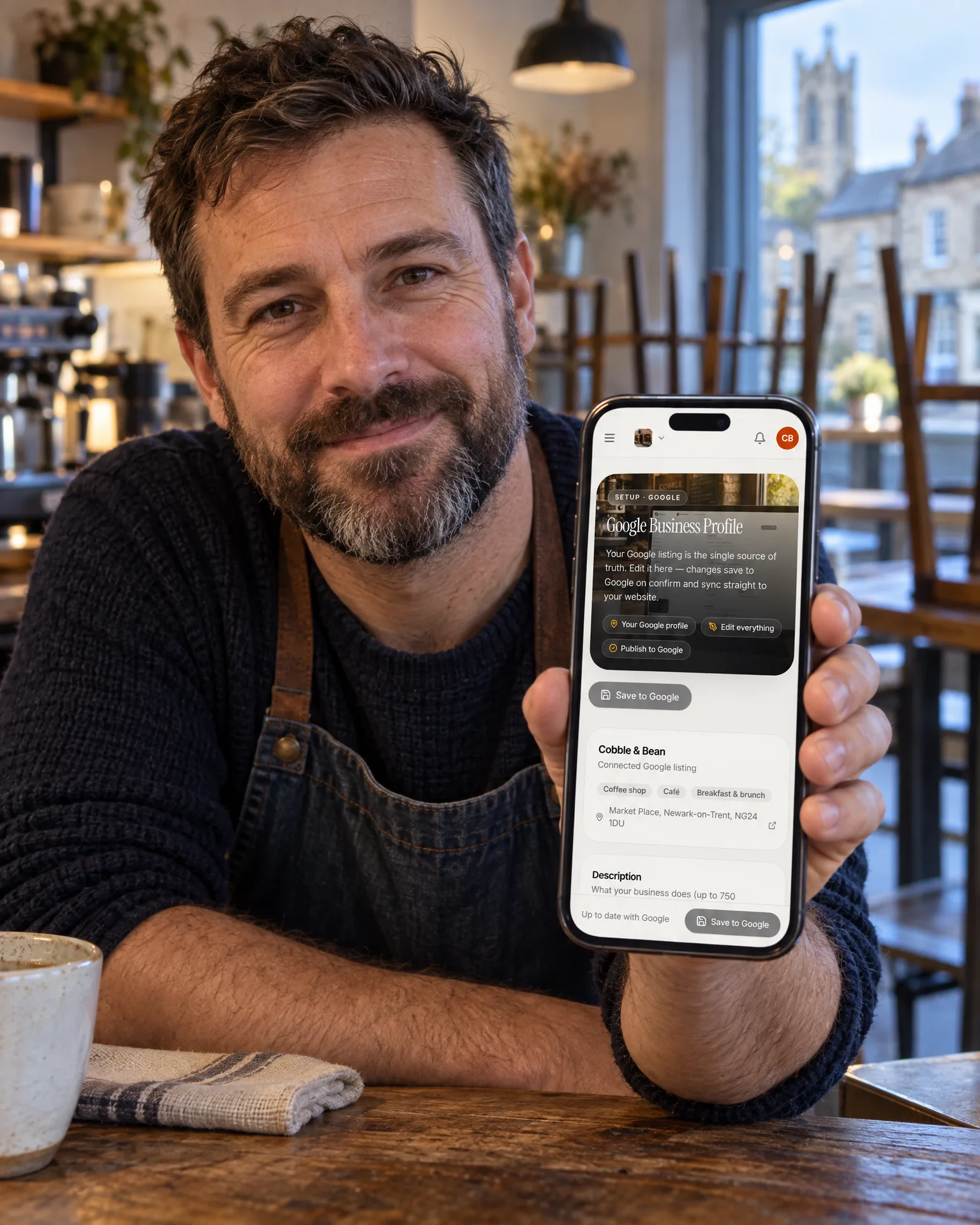
Little and often beats a big tidy-up once a year, because customers rely on today's hours, not last year's. If keeping all this current is the job that keeps slipping, LocalQuiver's Google Business Profile tools let you edit your description, phone, website, hours, special hours, services, social links and attributes on one screen and push them to Google.
The short version
- Verify the profile, keep it in an account the business owns, and run one profile per location.
- Use your real name, with no extras. Pick the most specific primary category and as few others as you need.
- Hide your address if customers don't visit you, and keep your service area realistic.
- Set special hours for every bank holiday and for Christmas, and mark yourself temporarily closed for breaks of seven days or more.
- Keep the description under 750 characters, with no links or prices.
- Add real photos, ask every customer for a review, reply to every one, and never offer anything in return.
- Check something on the profile every week. It's quicker than fixing it later. For how this all feeds into where you rank, read the Google map pack, explained.